
Updating |

|

|

|
||
|
Updating |
|
|

|

|
Updating
|
Updating |
|
|
|
||
|
Updating |
|
|
|
|
When installed Trojan Remover sets up a Scheduled Task to check for Updates daily. Both Database and Program Updates will be downloaded and installed automatically.
You can manually check for updates by clicking on the "Update" button in Trojan Remover's main menu or by selecting "Help > Check for Updates" from the main menu. This will launch the Trojan Remover Updater. You need to ensure that you are already connected to the Internet before checking for updates. If you use a firewall then you will need to ensure that your firewall allows "Trojan Remover Updater" to access the Internet.
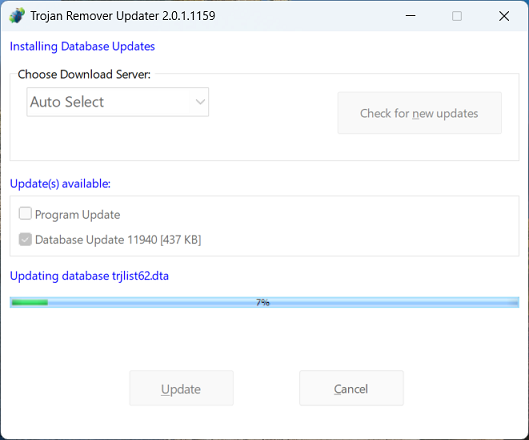
The Updater will check to see if there are any Program or Database updates available. If there are you will be offered the option to downloaded the update(s). Clicking on the Update button on the Updater screen starts the update. All files needed for the update are downloaded and automatically installed, and where necessary registry information is updated. Normally Trojan Remover can update itself without requiring a reboot, but if a reboot is necessary then you will be prompted, and the update will be completed once you have rebooted.
You have complete control over the Updates process. Menu options in the main Trojan Remover program Settings menu allow you to enable or disable automatic update checks, or - for example - to only allow automatic database updates and require program updates to be installed manually. The Updater program will notify the User when such Program Updates are available, if they are not being updated automatically. You can also change the time of day when the daily update checks are run.
See also:
Scheduling Automatic Update Checks